In this post, you can learn how to make the VLC media player program interface dark by installing a dark skin for VLC. You can also make it dark by selecting a dark mode in your OS.
Install Dark VLC Skin
To install a dark skin for VLC:
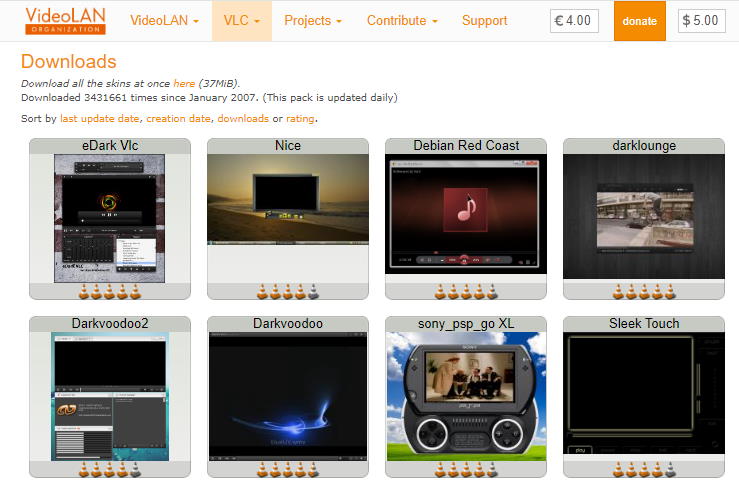
- Go to this VLC Skins webpage on videolan.org site.
- Click on one of the dark skins on the list, such as eDark VLC, Darklongue, or Darkvoodoo.
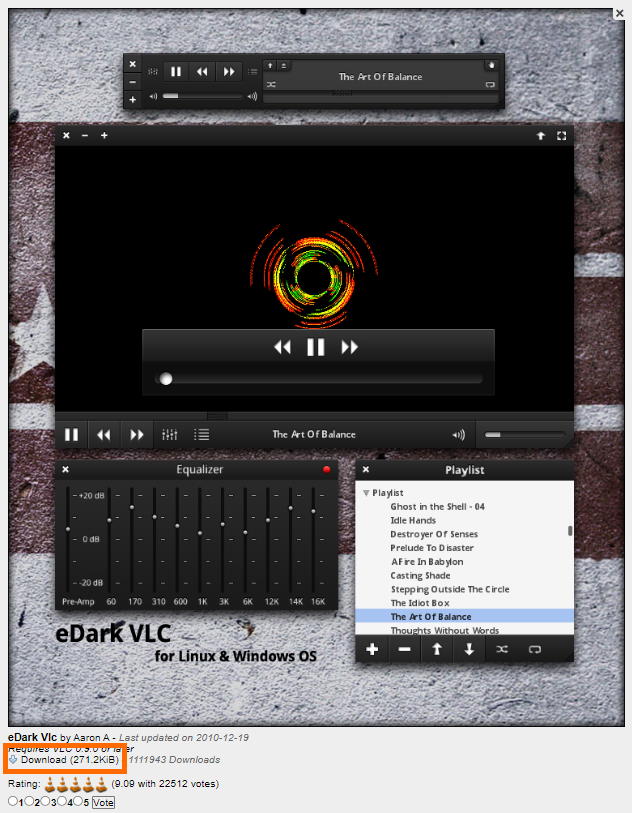
- Click on the Download link, below the preview image of the chosen skin to save the skin to your computer.
- Open the VLC Media Player program.
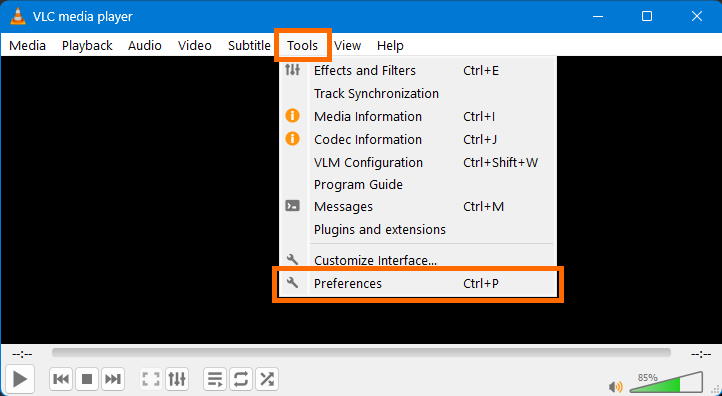
- In VLC, go to Tools / Preferences on the program menu on the top.
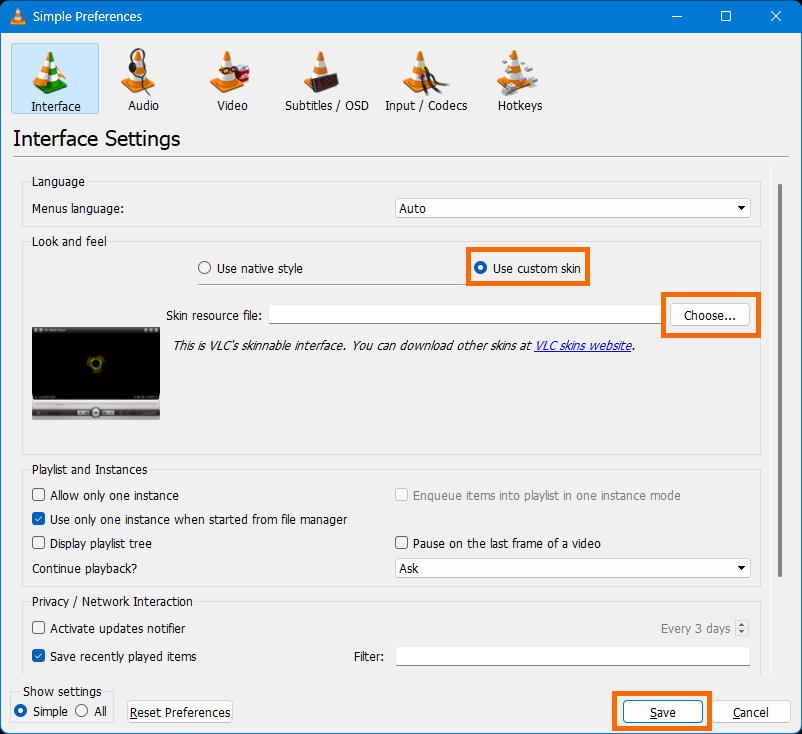
- In the Preferences / Interface Settings / Look and feel section click on the Use custom skin button.
- Click on the Choose button on the Skin resource file line and select the VLC skin you downloaded previously.
- Click on the Save button on the low end of the window.
- Close and reopen the VLC media player for the changes to take effect.
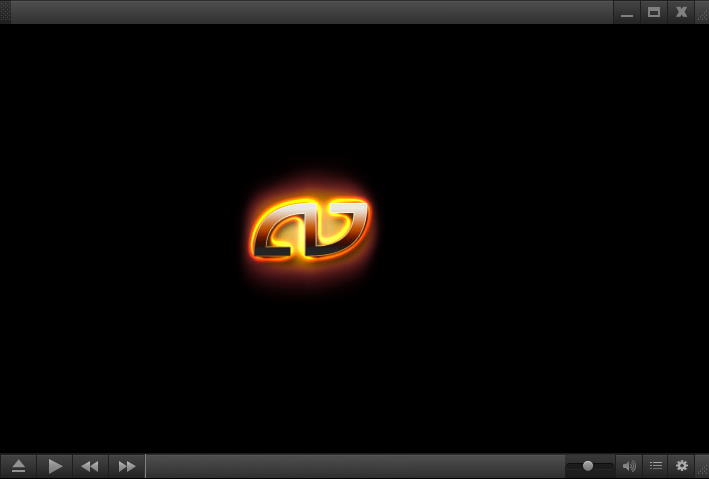
This is Darkvoodoo, one of the dark skins that enable a dark mode-like appearance of VLC.
Set Dark Contrast Theme in OS
You can also make VLC Player dark, by selecting a dark theme in your operating system. However, that setting will make the whole OS dark, not just the VLC app.
A tip for Windows (11) users – setting the dark mode in Colors settings in Windows or using a dark Windows theme doesn’t make the VLC program dark. But, you can make VLC dark by choosing one of the dark Contrast themes. To activate a dark Contrast theme, go to the Settings / Accessibility / Contrast themes section of Windows.
Have a comment, question or suggestion? You can use the comment form below.
Leave a Reply